1
SET PATHS
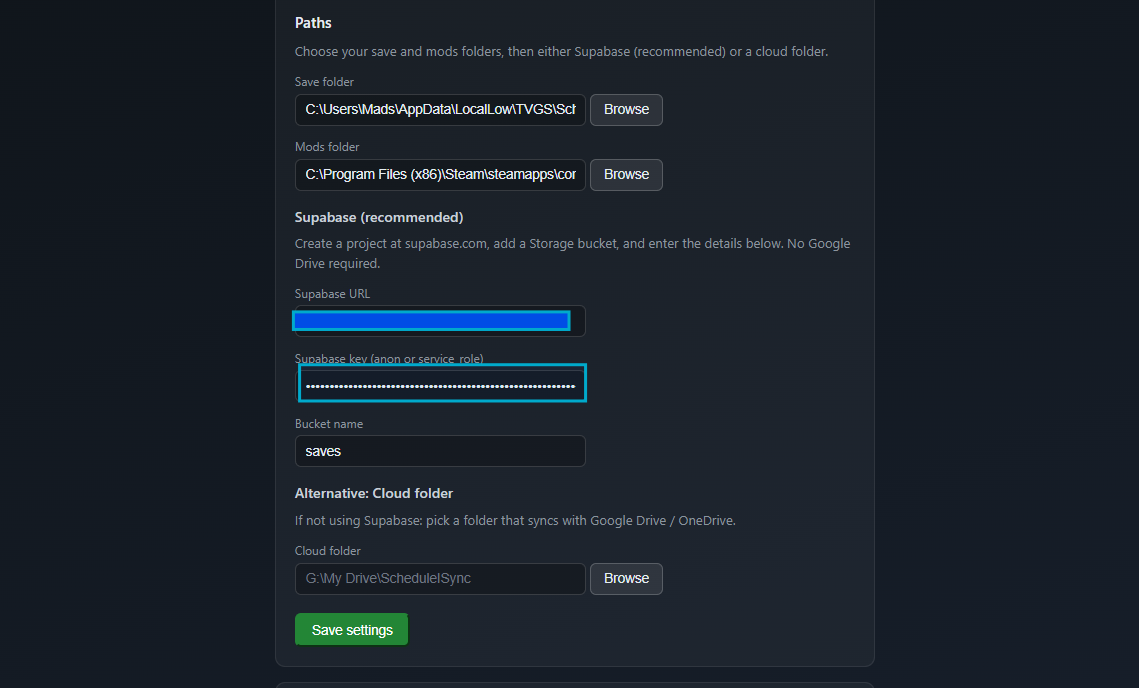
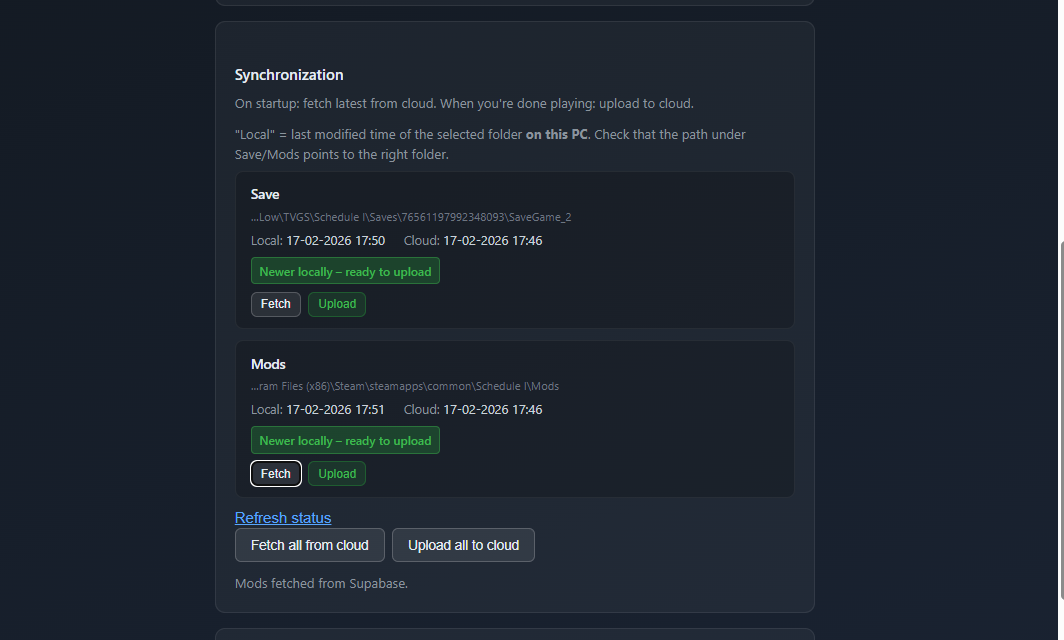
Set your Save folder (Schedule I Saves), Mods folder, and your cloud – either Supabase (recommended) or a folder that syncs with Google Drive / OneDrive.
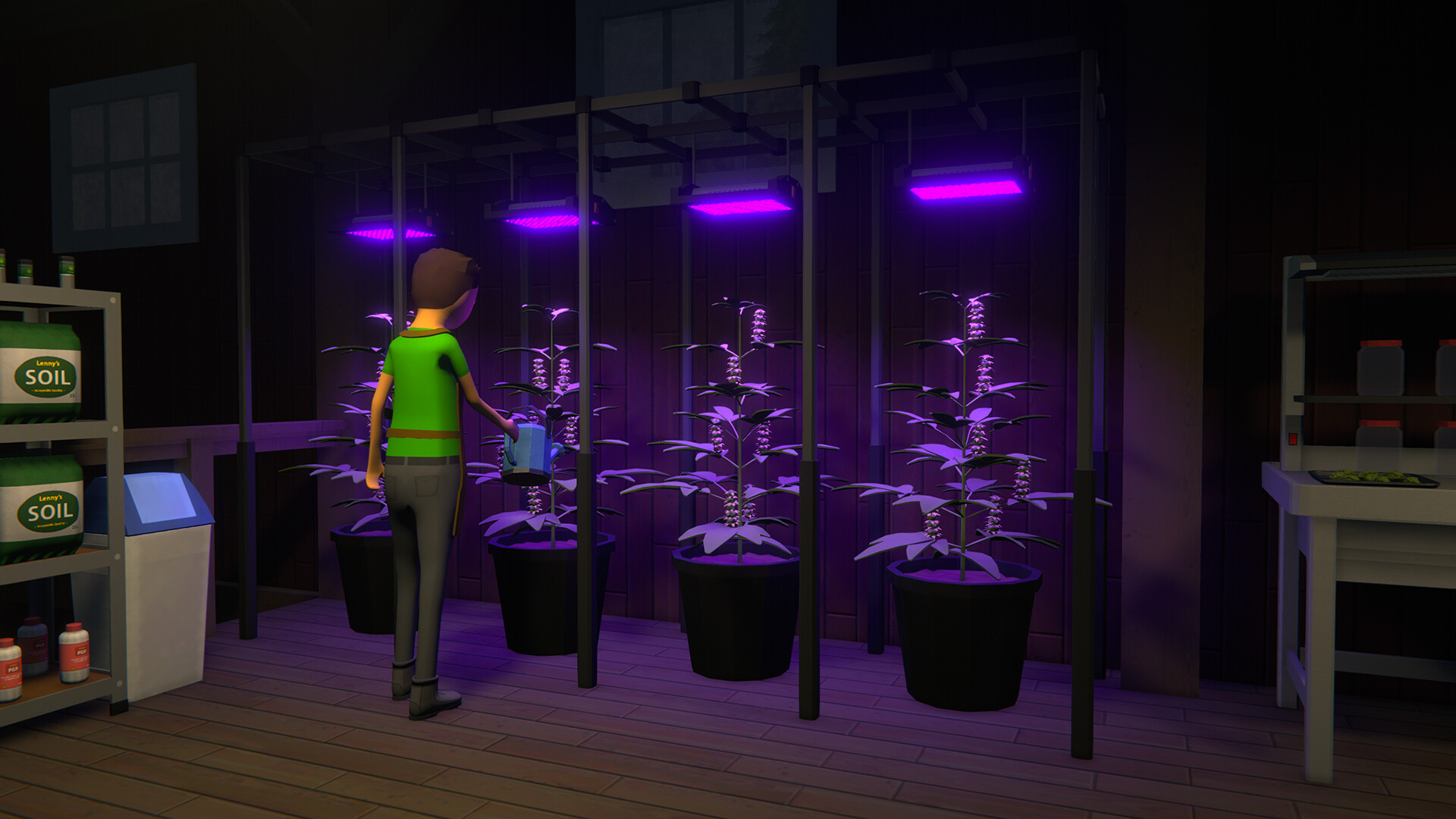
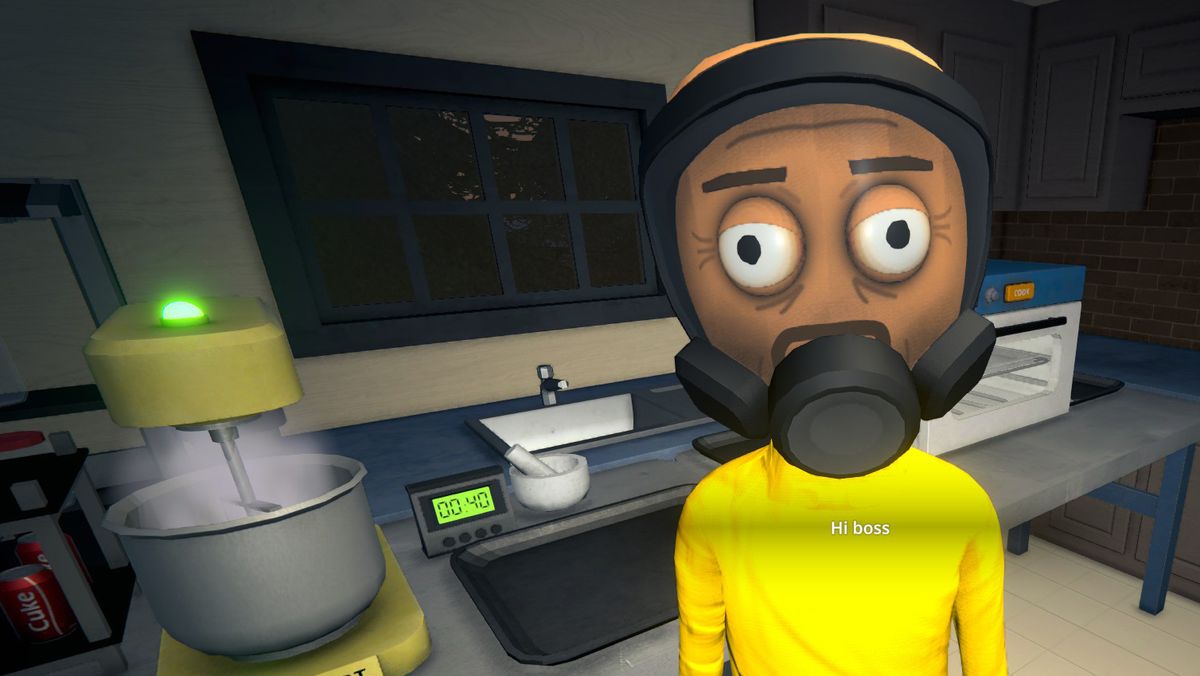
Play on a shared save without anyone falling behind. SyncOne syncs your group’s save via the cloud: when you progress solo, push to the server; when your friends come back, they’re notified and can pull your progress with one click—so everyone stays on the same page.
SyncOne is a desktop app that keeps your Schedule I save files and mods synced to a shared cloud – e.g. Supabase or a folder synced with Google Drive.
Instead of sending saves back and forth or depending on one person’s PC as host, you upload the latest save to the cloud when you’re done – and next time anyone opens SyncOne, the newest version is fetched automatically. So the whole group is always on the same page.
Windows may warn that the file is unsafe because it doesn't know the developer. You can run it anyway—the source code is available online, so you can review or scan it if you like.
Set your Save folder (Schedule I Saves), Mods folder, and your cloud – either Supabase (recommended) or a folder that syncs with Google Drive / OneDrive.
When you open SyncOne, it automatically checks if there’s a newer save or mods in the cloud – and fetches them if so.
After playing, upload to the cloud (Save, Mods, or both). Then everyone else has the latest version next time they start SyncOne.
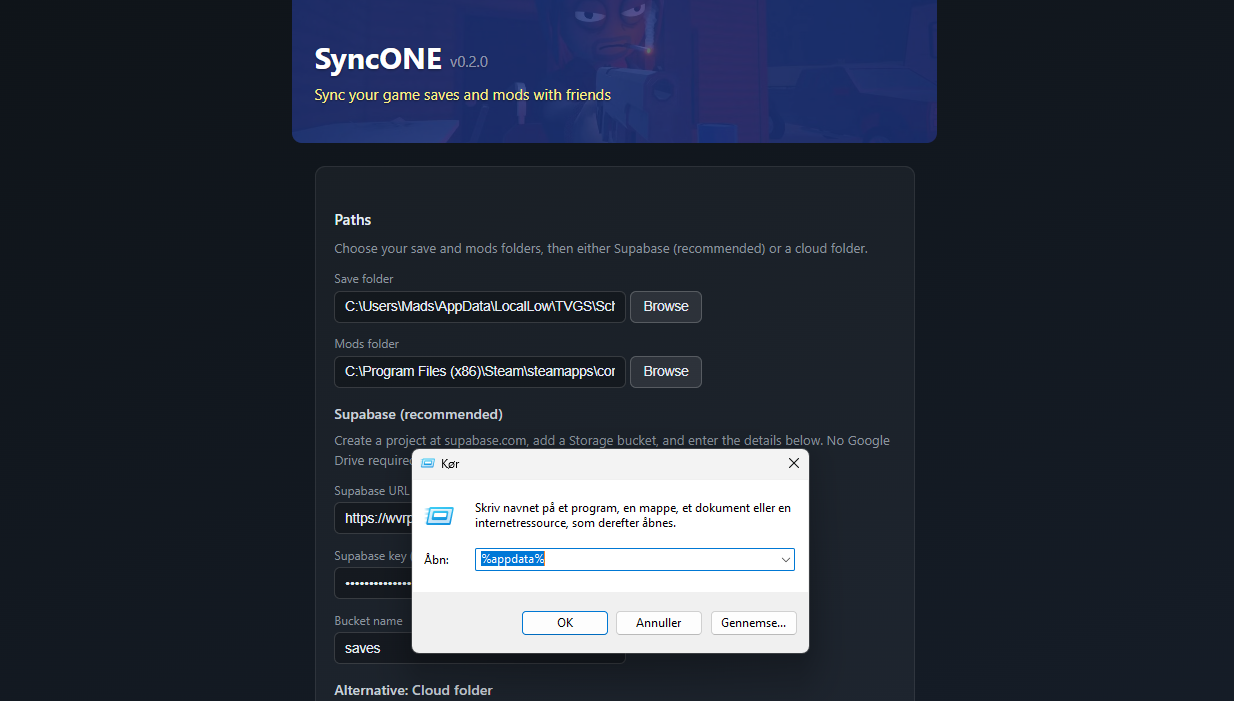
After installing SyncOne, follow these steps to point it at your Save/Mods folders and your cloud (Supabase).
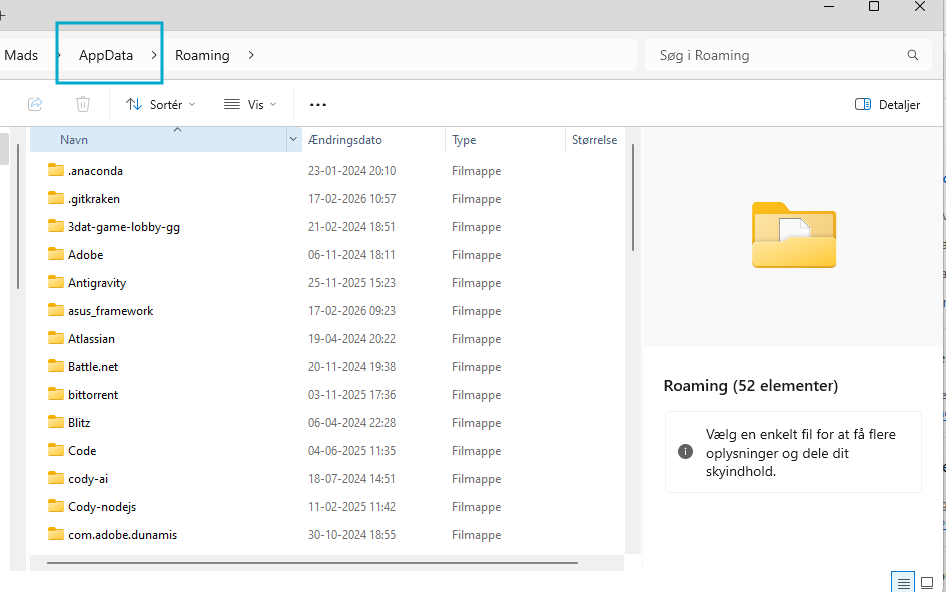
Follow these steps to locate your Schedule I save folder and set it in SyncOne.
%appdata%, then press Enter.Steam\steamapps\common\Schedule I and select the
mods folder.
Mods: Remember to download MelonLoader and set it to 0.7.0—it’s the only stable version.
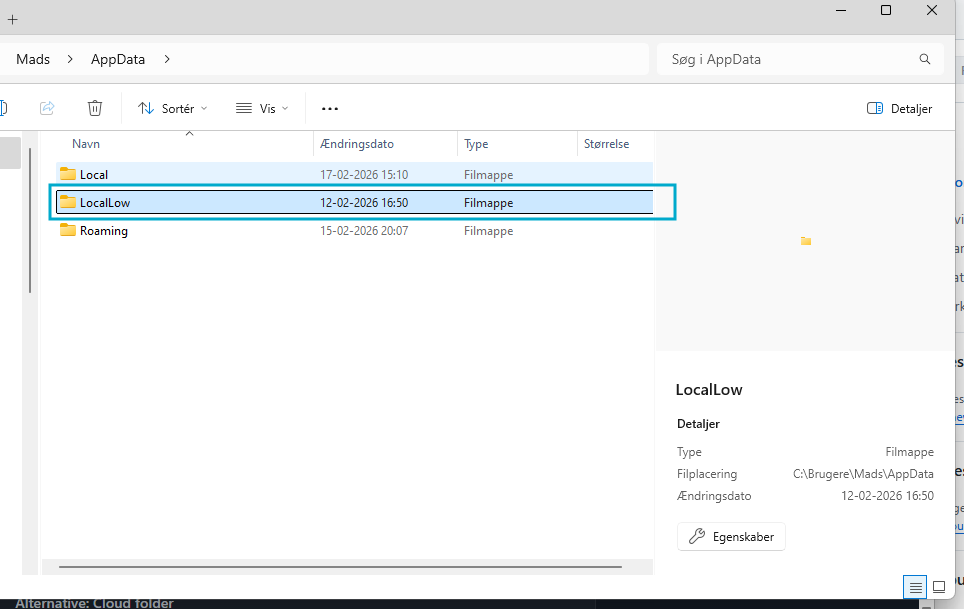
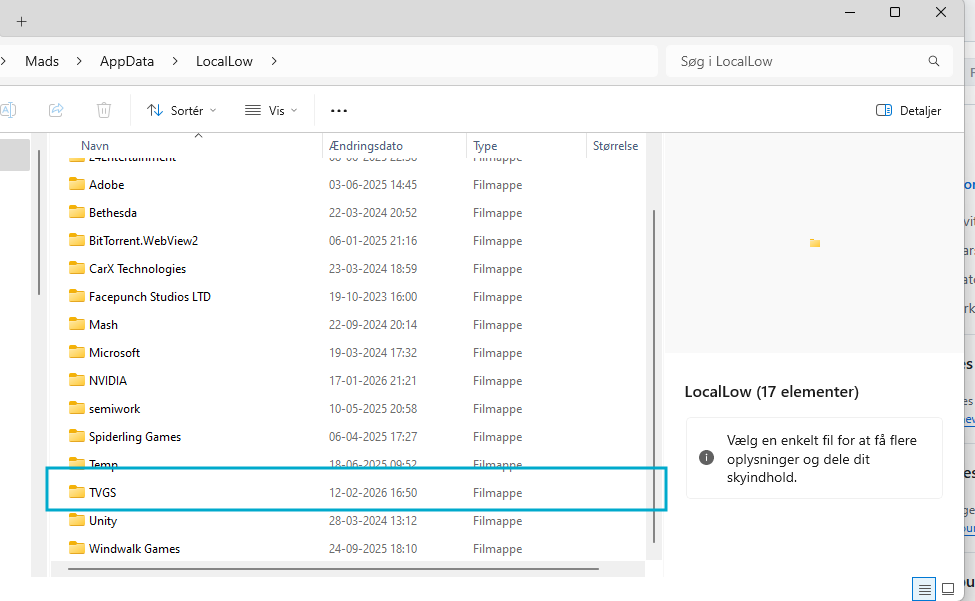
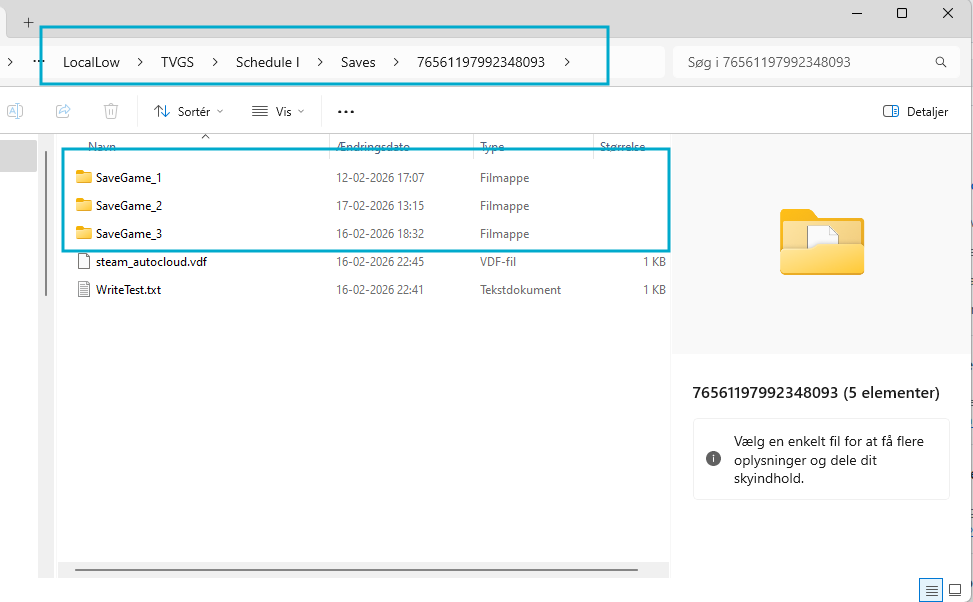
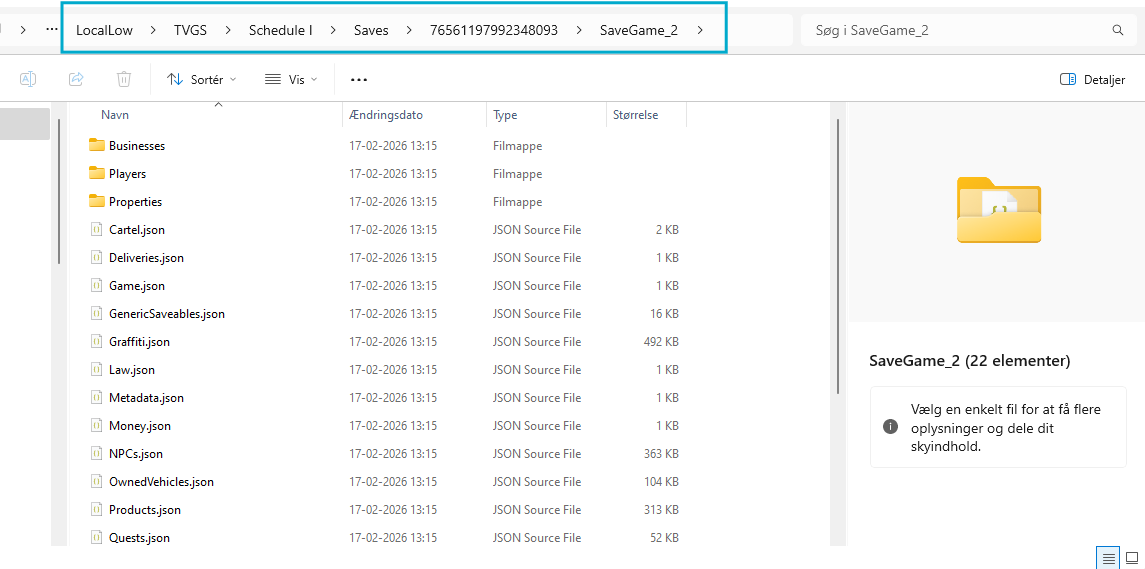
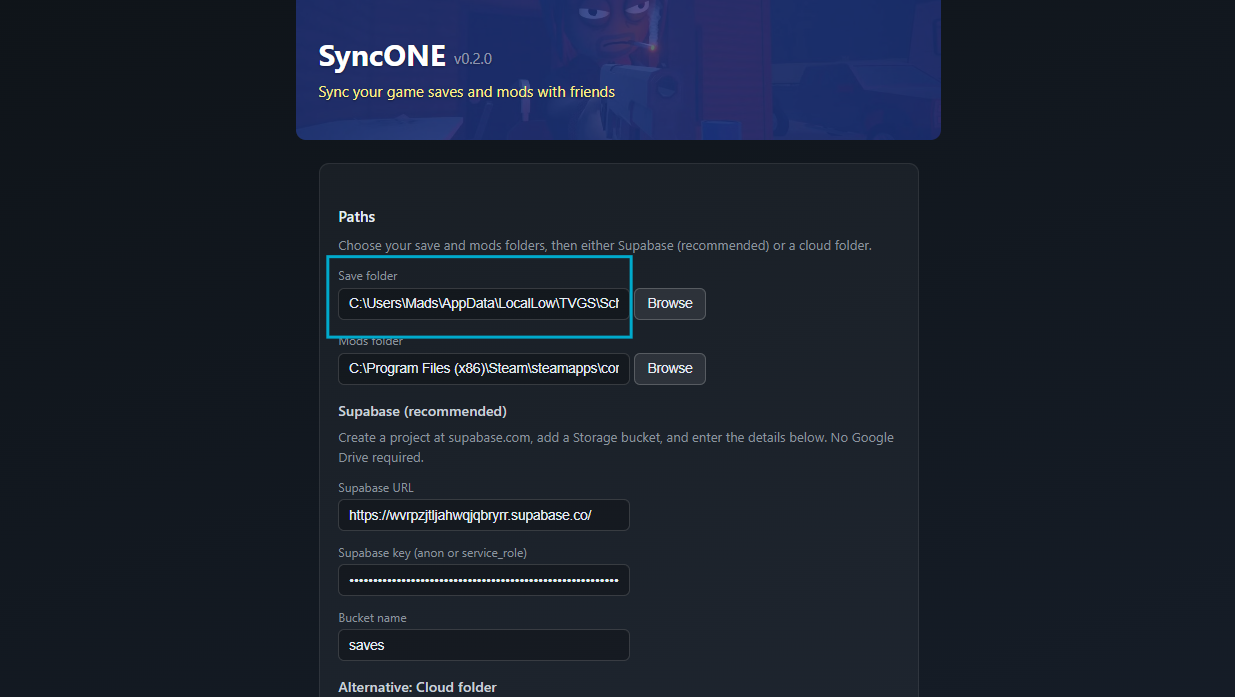
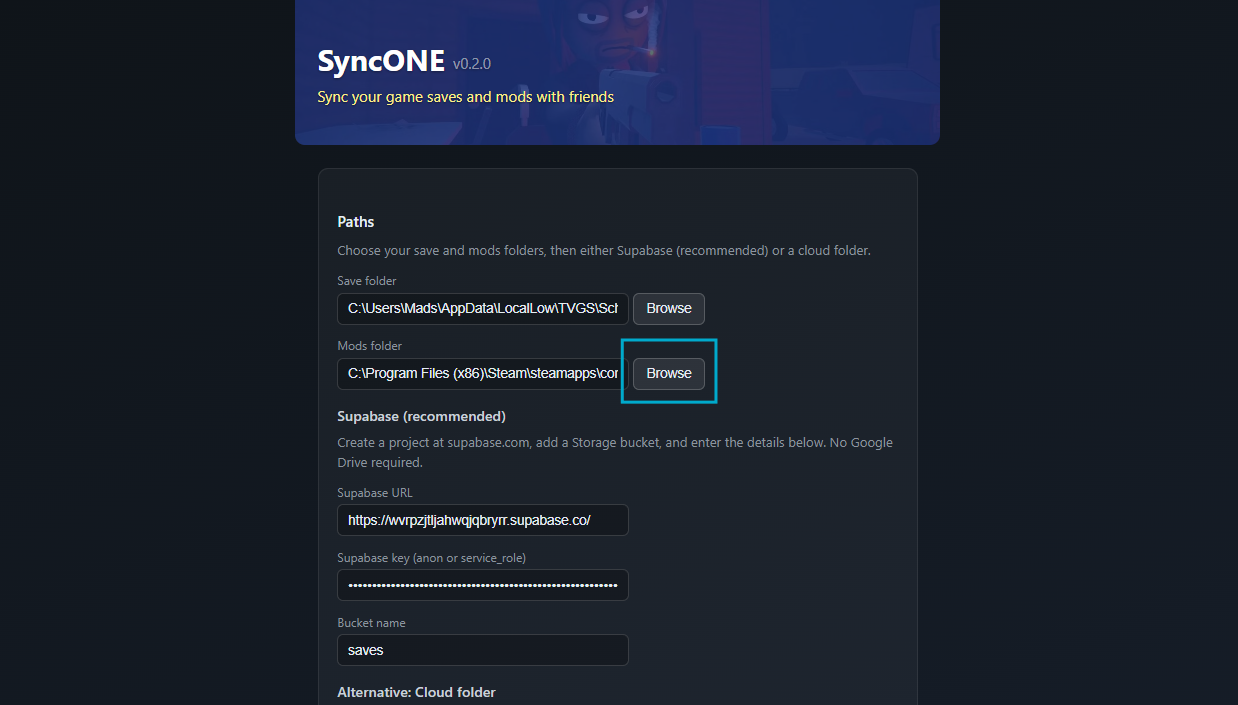
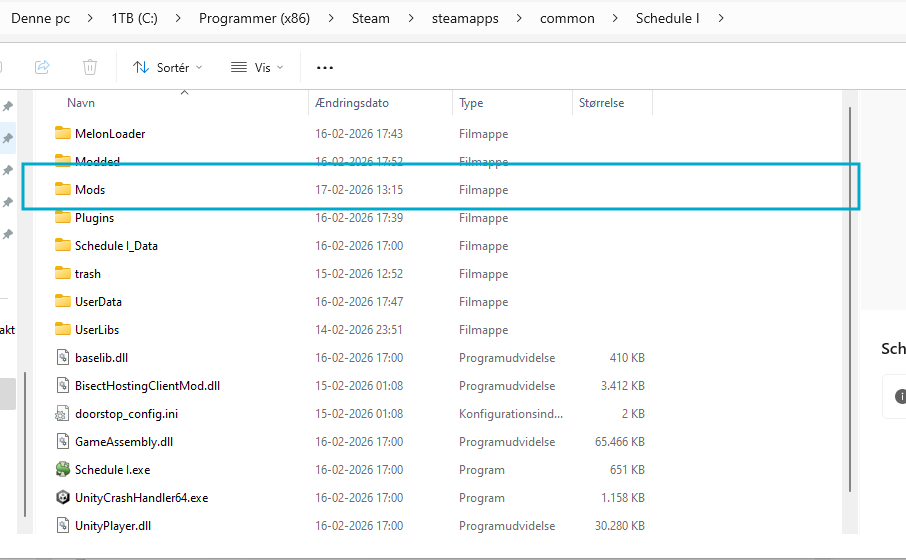
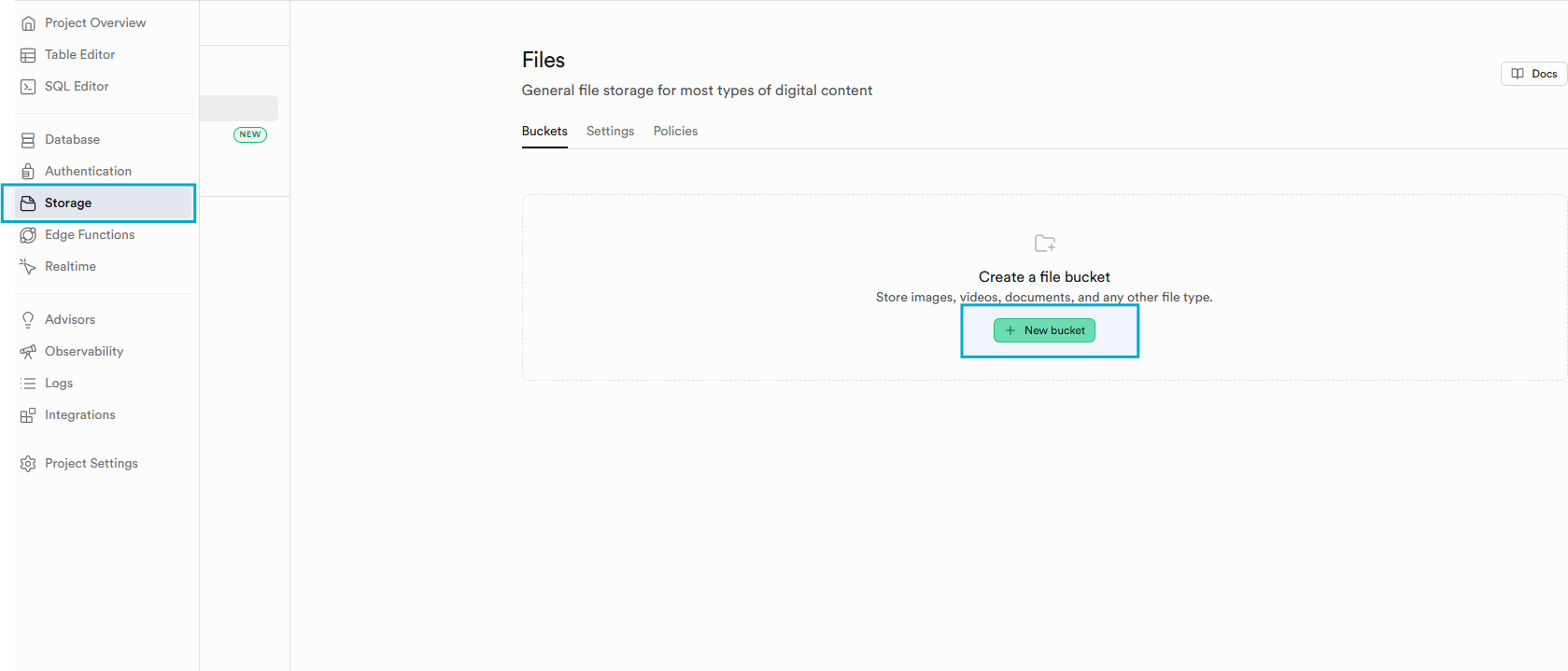
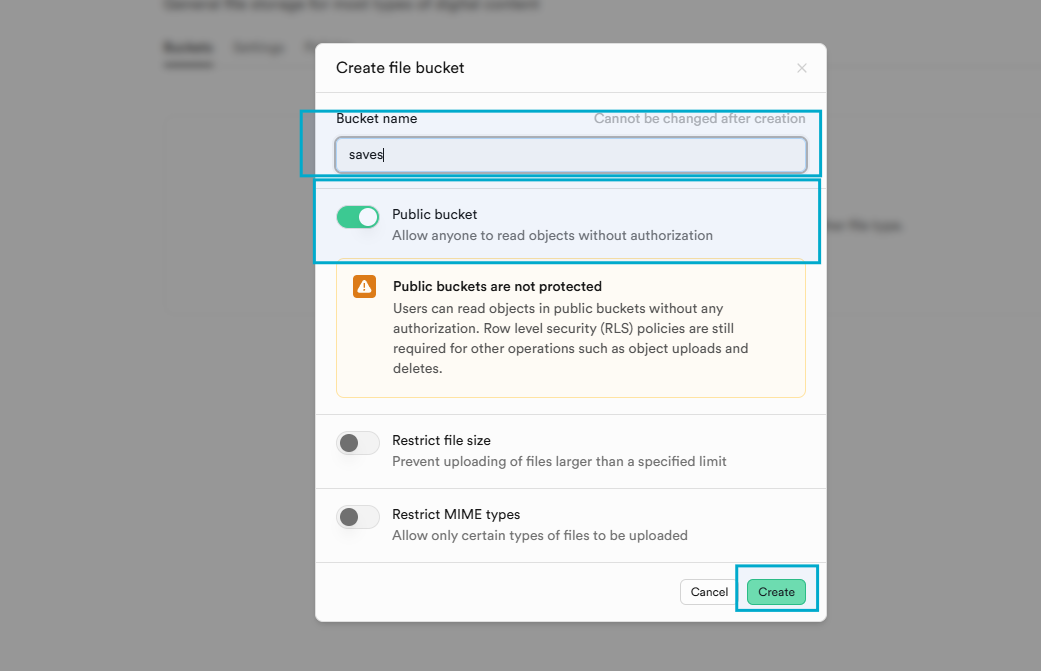
Follow these steps to create a Supabase project, get your API key and URL, create a storage bucket, and enter everything in SyncOne.
saves is easy to type).
Remember to turn “Public bucket” on.
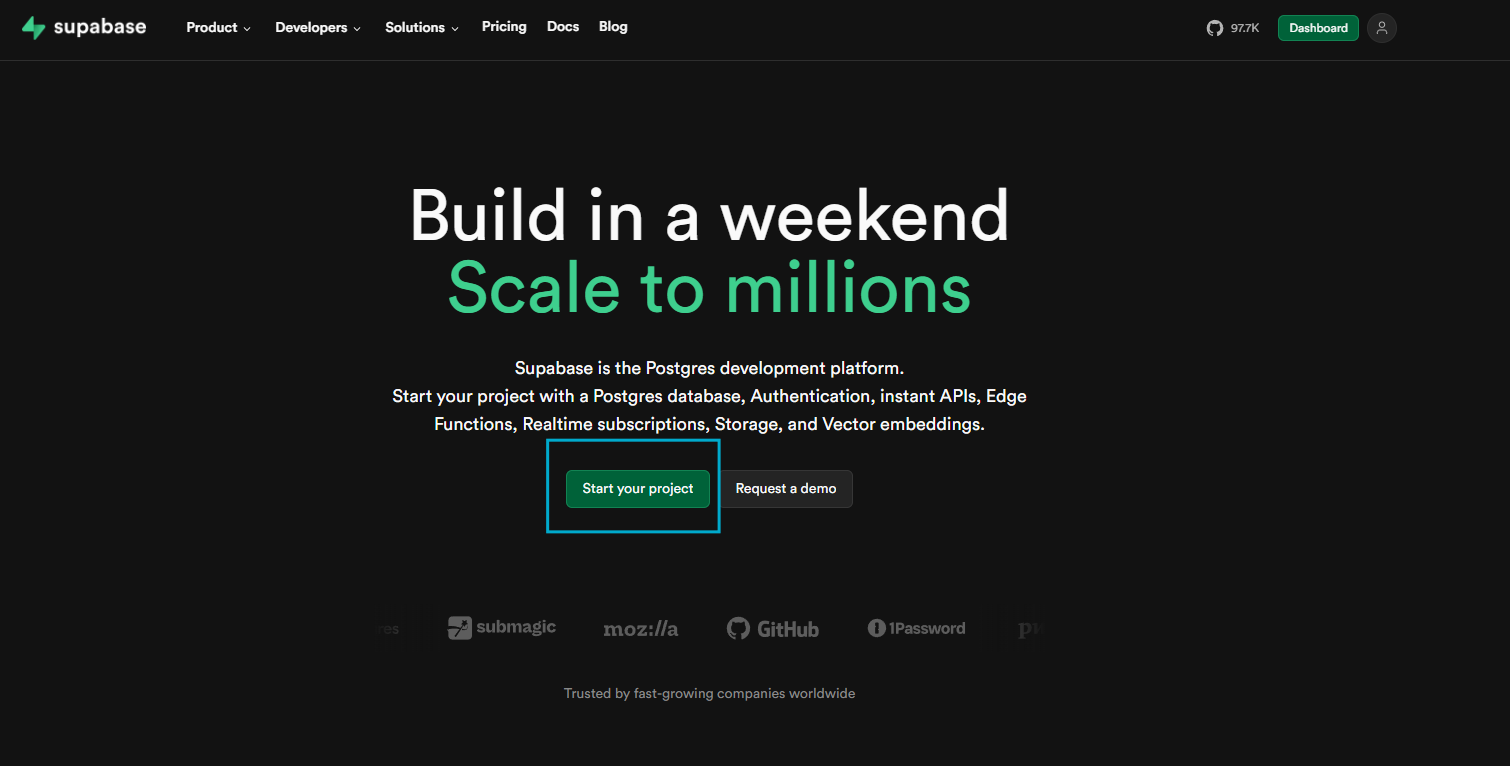
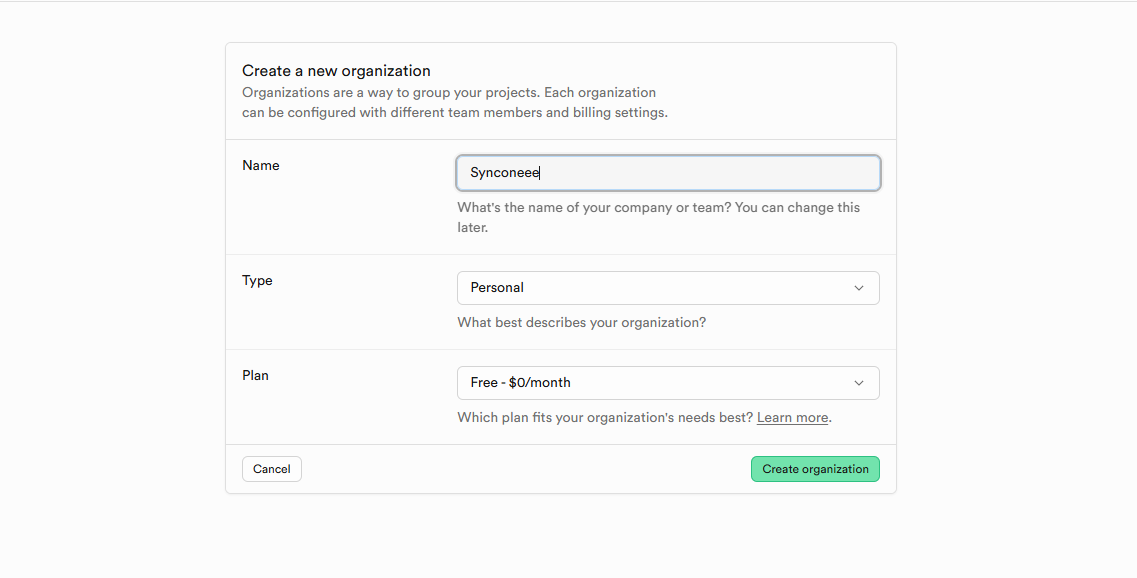
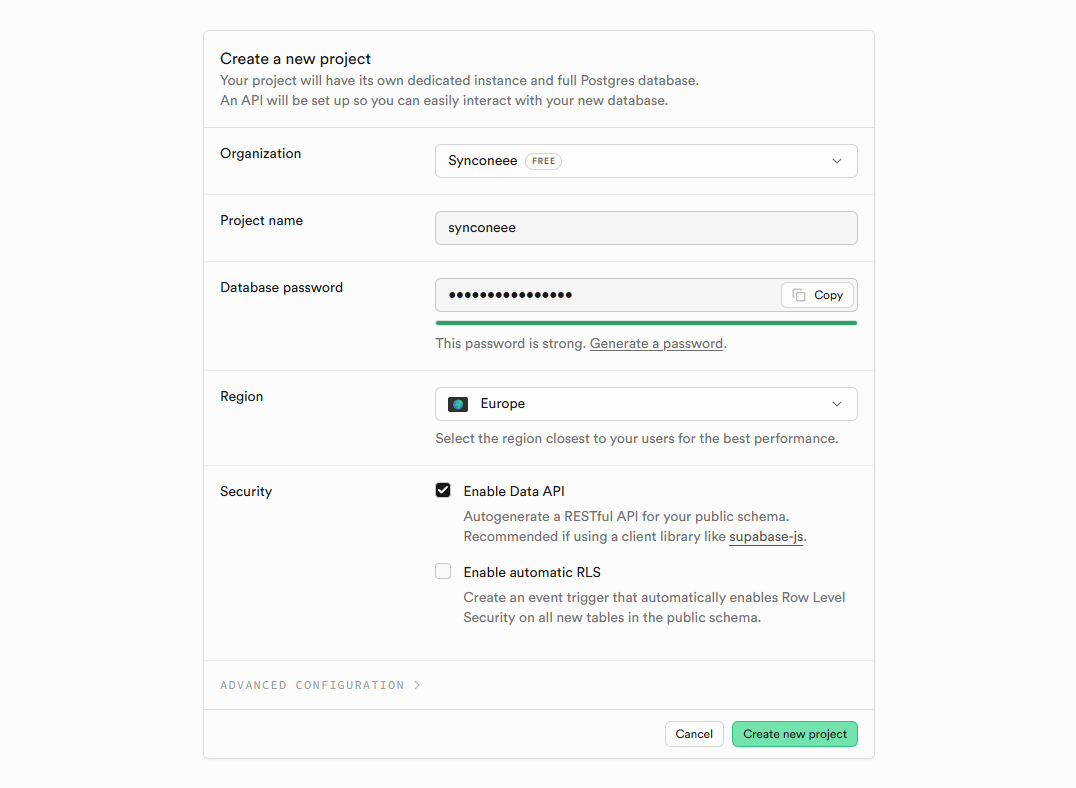
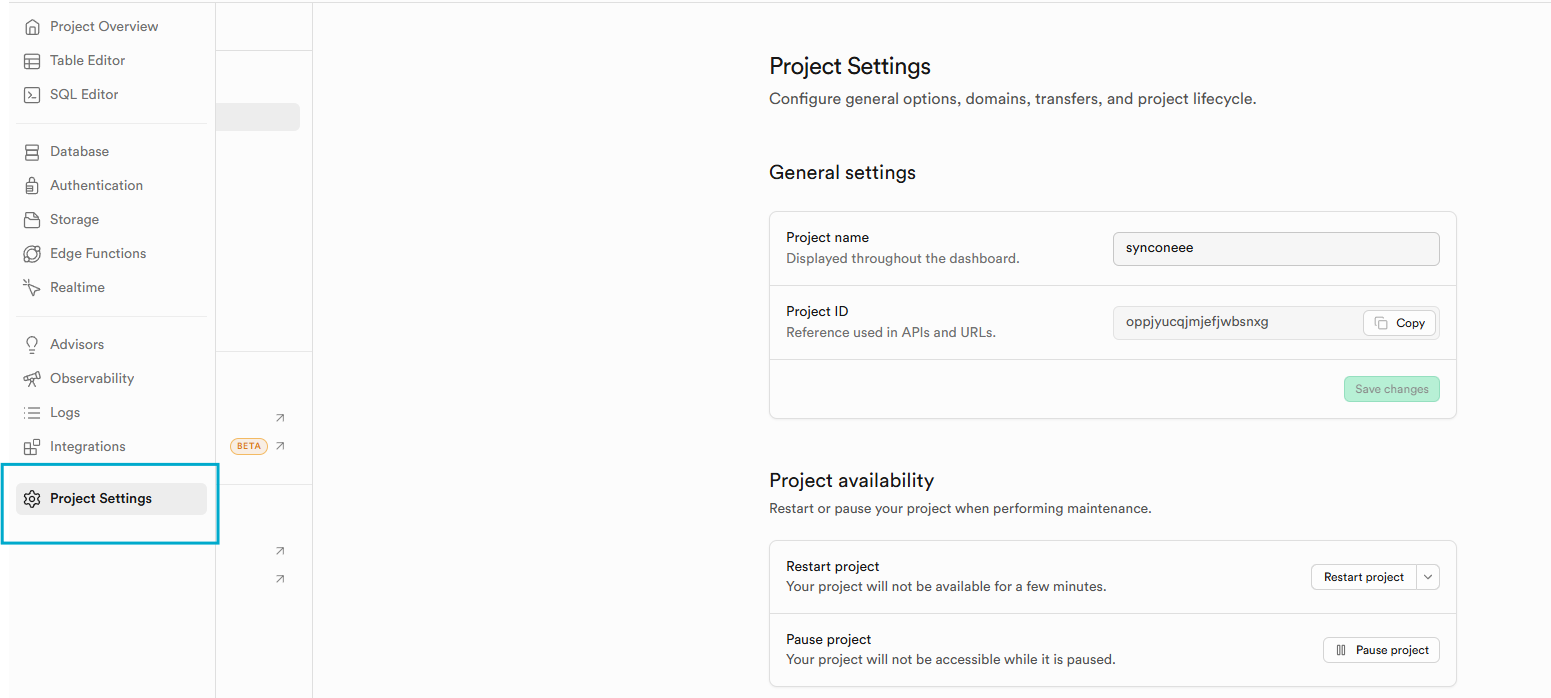
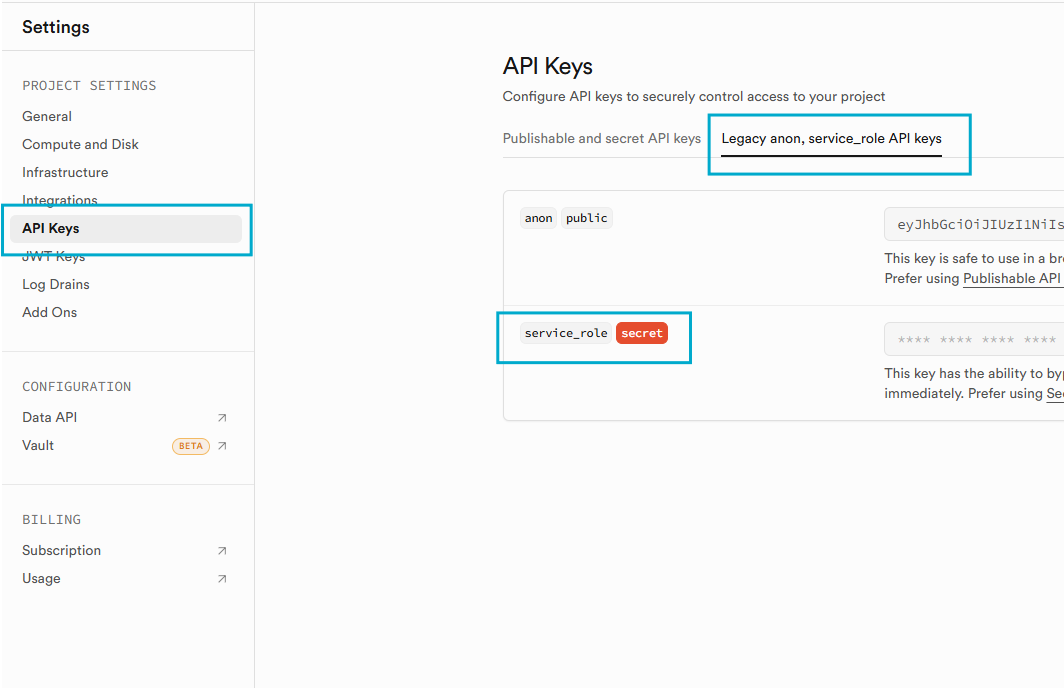
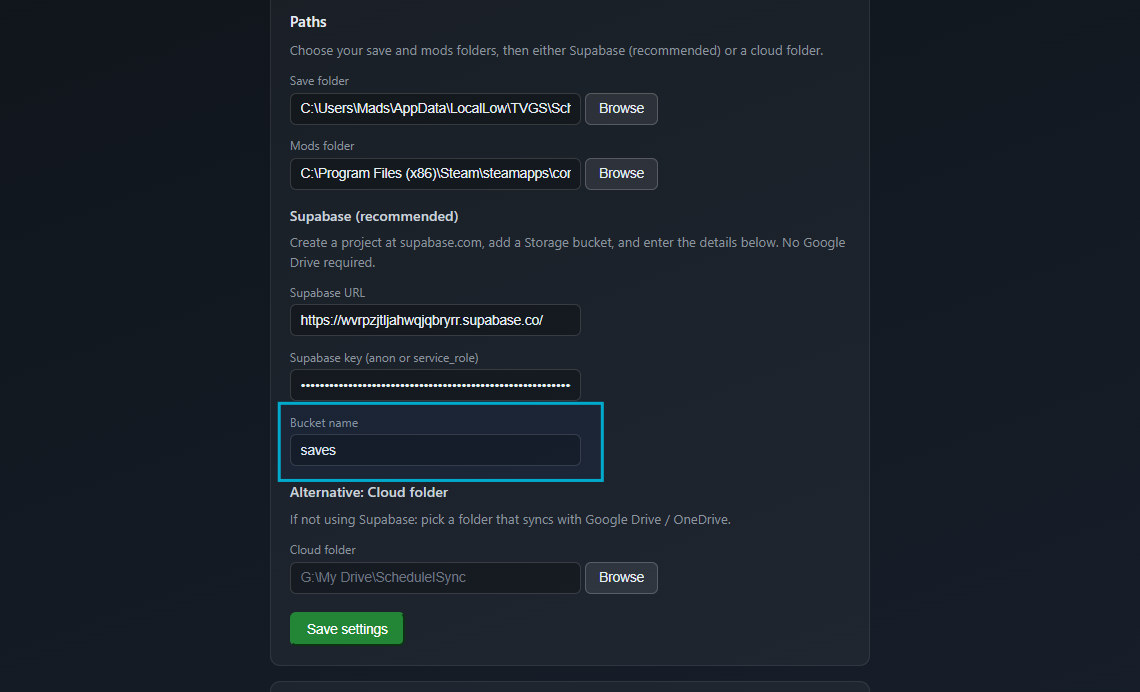
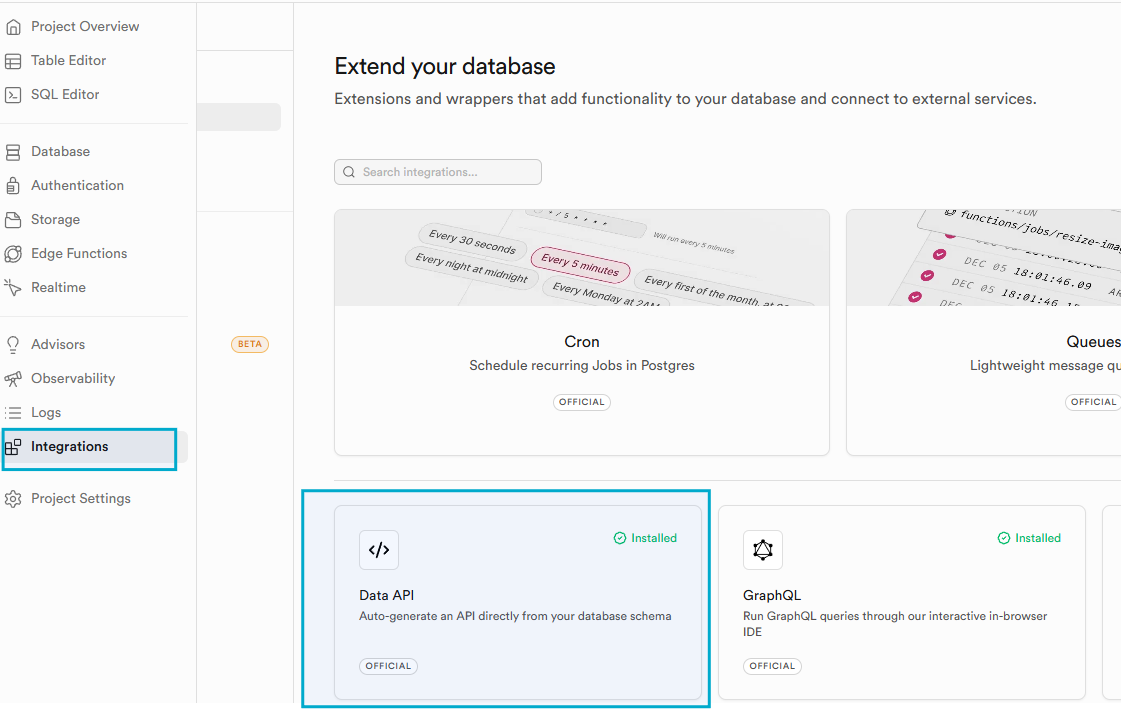
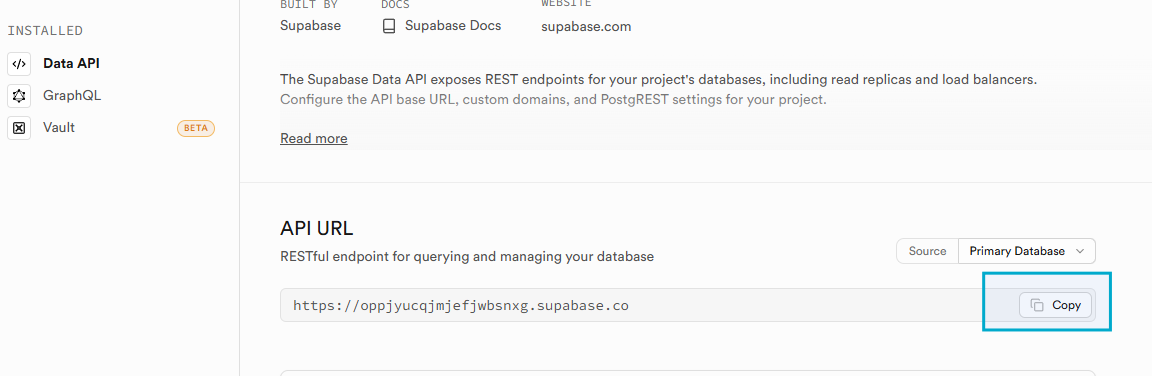
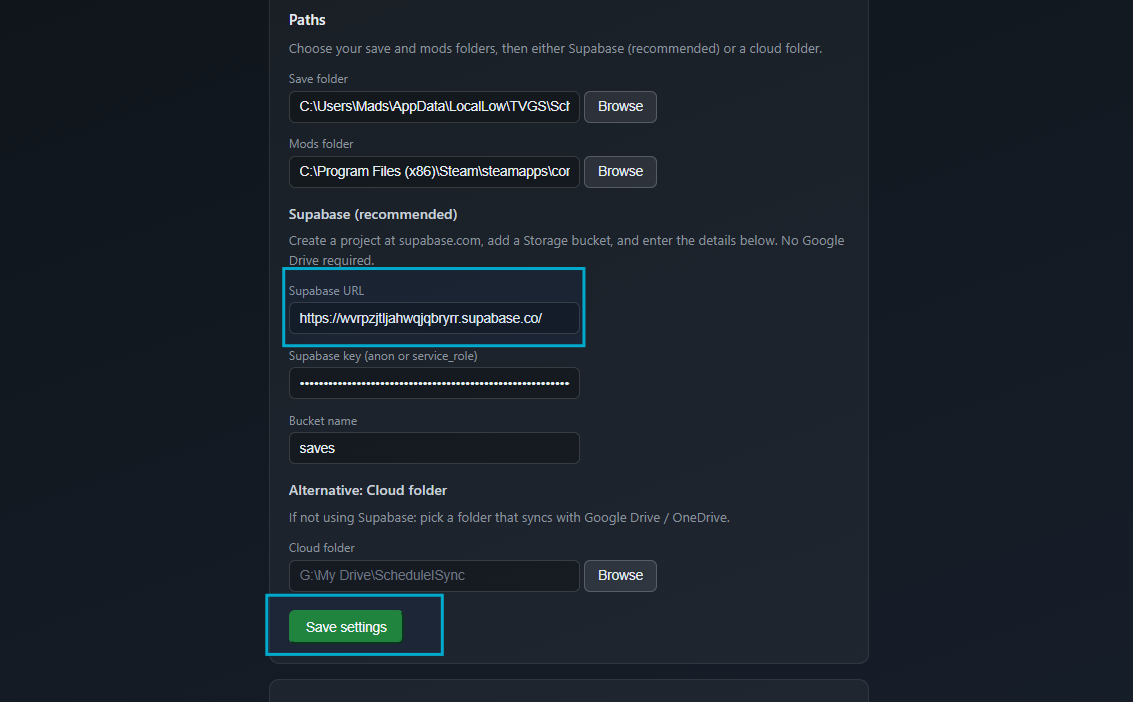
Once paths and Supabase are set, use Save settings and Fetch/Upload to stay in sync with your group.
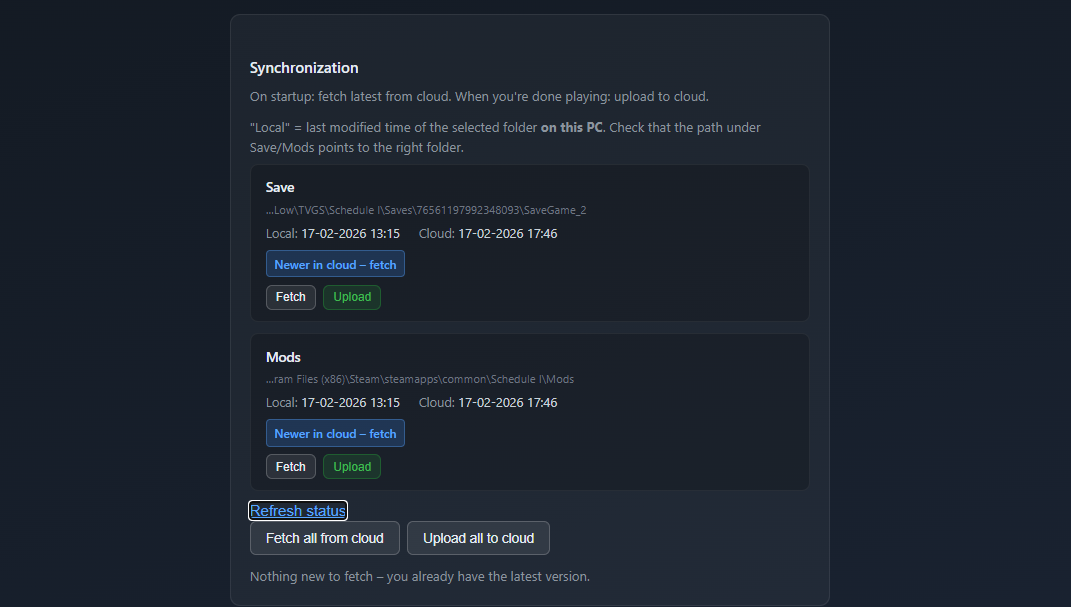
Download the SyncOne installer and run it on your PC. After setting up paths and cloud, you’ll run with the latest save every time.
When you pull the latest save, your entire character—inventory, clothing, and so on—is replaced by whoever uploaded last. I’m working on a solution that will exclude player data so your character stays unique. Quick fix: stash everything before you log off so it’s in the shared save.
Fixed in version: V1.6
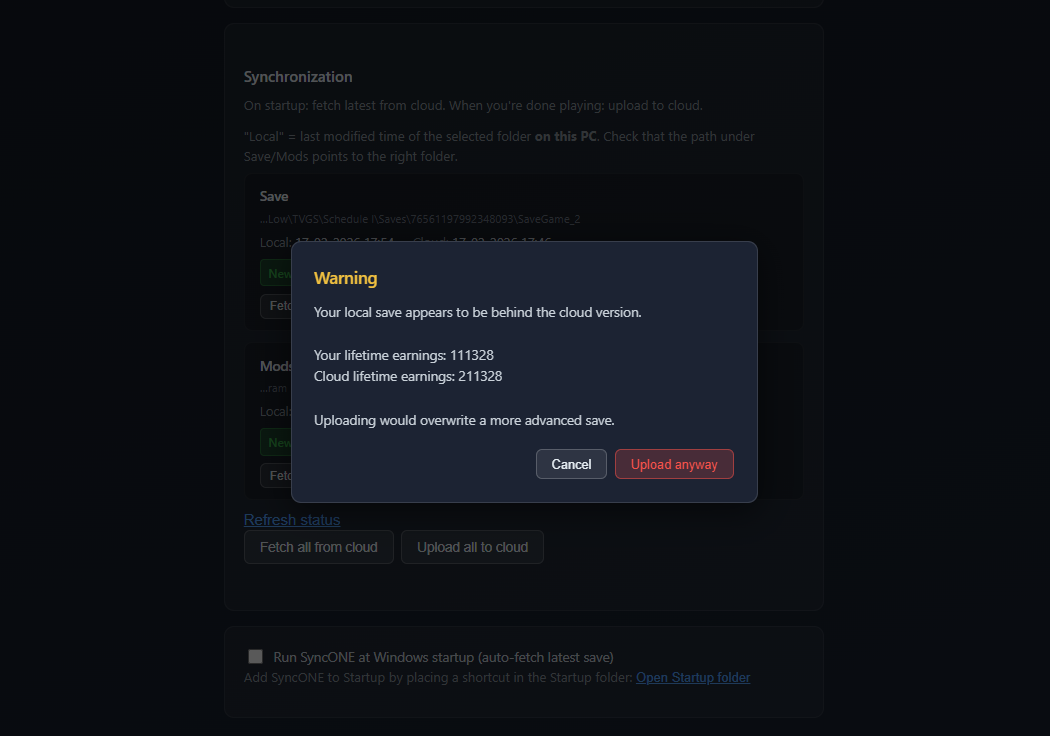
When you opened SyncONE, it used to run a sync pull in the background without using the same safety guard as manual fetch. If the cloud had a newer save by file date but with lower progress (LifetimeEarnings), the app could overwrite your better local save without warning. Now the startup auto-pull goes through the same path as the manual “Fetch” button: the LifetimeEarnings check runs, and if the cloud save is behind your local one you get the warning modal and can cancel. On successful auto-pull the status shows “Auto pulled newest version on startup.”
Added in version: V1.7.5
SyncONE checks for app updates when you open the app. If a newer version is available, you get a prompt to download and install it. The check runs in the background so the app loads immediately, and it times out after 5 seconds so slow networks don’t block startup.
Fixed in version: V1.2
Previously, the app did not check whether the local save you were about to push was actually further ahead in the game than the one on the server (even if the local file was newer). You could accidentally overwrite a more progressive save. SyncOne now warns you before pushing if your local save appears to be behind in progress—detected by comparing LifetimeEarnings on local vs. server. The same check applies when pulling: you are warned if your local save is ahead of the server, so you don’t accidentally replace it with an older one.
Fixed in version: V1.2
You can now upload Save and Mods separately. Use the cards in the app to push only Save, only Mods, or both, depending on what changed.
Fixed in version: V1.4
Addresses a multiplayer sync issue where players joining a synced save could get stuck on "Syncing"
screens. SyncOne now injects HasExitedRV.json into saves after pulling to reduce the
likelihood of this issue. Troubleshooting documentation has also been added.
Added in version: V1.5
When you fetch or push a save, SyncOne updates the in-game save name (the one you see in Schedule I’s load menu) to Synced – YYYY-MM-DD HH:MM. So you can tell at a glance whether you’re on the right synced save when opening the game.
Added in version: V1.5
The app header now shows the real build version (e.g. SyncONE v1.5.0) instead of a static label. So you always know which version you have installed and can confirm after downloading an update.
Digital business optimization & AI Developer
I build side projects in my spare time—including a leasing platform, a free-to-use budget system, and an electrical cost app (made with a partner). SyncOne is one of them.
Most of my repos are private. Find me on GitHub:
github.com/fr11z1234